This is for all Mac users in India who are using Tata’s plug-2-surf USB internet or planning to buy it.
Although there is no official support from Tata to use plug-2-surf on Mac, it is fairly simple. Just follow steps listed below…
1. Just plug your USB modem to any USB port available on MAC. Wait for green light to turn on.
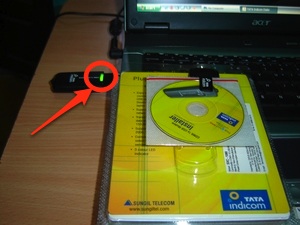
(image via: Techie Cocktail)
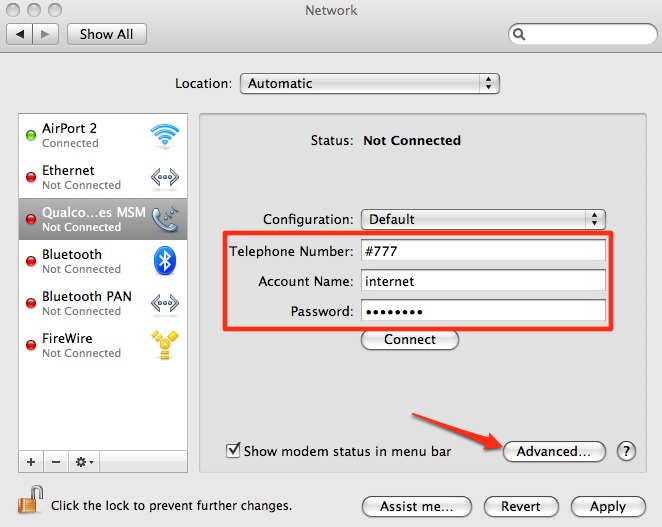
2. Next open Mac’s System Preferences. Select Network settings.

3. Under Network settings, for Qualcomm CDMA Technologies MSM connection, use following values:
- Telephone Number: #777
- Account Name: internet
- Password: internet
After this, go to “Advanced” Settings.
4. In Advanced settings, modify two fields:
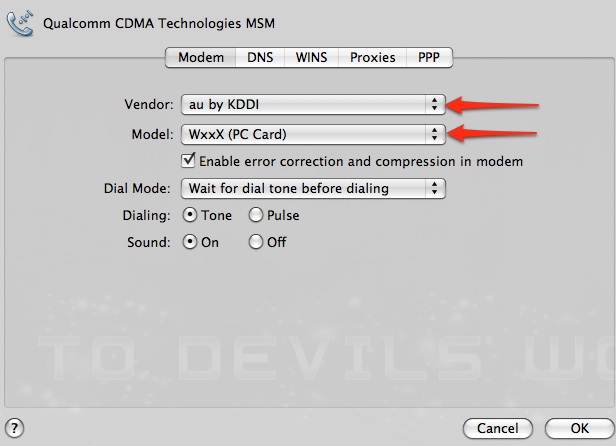
That’s it, hit OK. Click Connect on next screen (Step #3).
I am experiencing a lot with Mac and quite comfortable with it. So if you guys have any general questions related to Mac, please feel free to ask them here.
I do not code apps for Mac as of now, but hope to do that someday. 🙂
Related: Enabling Bluetooth File Transfer on Mac OS X Leopard
43 Comments
Lol.. nice..
@Gautam
Hey you are on Mac too? 🙂
Dear Friends,
Thanks for this help. It is working great.
@Moses Parmar
Your welcome buddy… 🙂
Welcome To Devils Workshop! 😉
Thank you for the tips, trying hard as a tourist in Goa, it will unfortunately not work,
well it seems to work for others, maybe I schould wait untill tomorrow; I just bought the stik, it may take some activation time,
just to get rid of airtel-extraslow!
@hans
Steps listed in this article work for sure. If they don’t work there then there must be some technical problem from Tata’s side.
Anyway traffic will be at peak in Goa due to holiday season so I guess that may be affecting traffic as well.
Well I have just read the above steps and it really worked…
Much to the surprised Tata folks who had told me that it would not work its working just fine!
My sincere thanks for the tips… 🙂
@Jordin
Your welcome budyy… 🙂
Thanks you so much for this amazing help !!! Philippe from France
@Philippe
Your welcome buddy… 🙂
Welcome To Devils Workshop… 😉
is there any way to hack tata s plug to surf for free internet
pls tell me hw 2 hack tata usb modem for free interne
hey where can i get the Mac Os X i want to install it on Intel Dual Core 3.0 PC. Please Help me out
@Sunil
Mac is officially available for Apple created hardware only.
Thanks for the information. Two questions: (1) I have a MacBook running OS X 10.4 (Tiger). Will the same procedure work? Anyone using this on 10.4? and (2) Does the new Photon+ (EVDO) USB modem work on the Mac? Is the procedure the same? Thanks.
@Anand
Here are answers…
1. Not sure. Never used Tiger. I started my Mac life with Leopard. By the way you can try above steps. If they don’t work, you can always Google.
2. Sorry again. No idea as I used plug2surf long time back.
Hi friends I want to sell my MAC AIR Laptop do you have any idea where can i sell it
@Awais
Try ebay! 😉
Or you can try our forum as well…
http://www.devilsworkshop.org/forum/
Hey this is great. Thanks for the solution. My mac connects with the tata indicom USB modem. Any idea how I can send and receive sms’s as well throught he mac?
@Dennis
Sorry for late reply… There is no way to handle SMS on Mac as far as I know.
hello, severalways,
one exellent, smsmac.com, you send directly from your adressbook, very god, very cheap, only thing is, it will not make a record from your sms, once they are gone, that’s it
ok!
ah by the way, of course with skype you can receive SMS. probably only to a skype international phone nr.
I guess Dennis is asking for using SMS via Tata dongle. For that there is no software, like they provide it for Windows, I guess!
hi…i dnt have the cdma option in my network settings….
hw do i get tht….
will it wrk for the bsnl evdo stik also
thnx….
@Shahveer
No idea about BSNL’s settings.
All I can say, try above article first with BSNL. If it doesn’t work, search around!
Hey Rahul… Thanx so much… Been stuck with an ancient modem because none of the new ones came with support for Mac.
Thanx to you I now use a sleek USB modem which compliments my sleek Mac.
Anand – It works with 10.4 beautifully.
@Prashanth
Thanks for update buddy 🙂
Hi,
Good article.
What’s the best USB modem now in 2010?
I’m coming to India for two months, arriving beginning of Feb, and I have been surfing, looking for reliable info on which USB modem is best for Macbook. I’m running Snow Leopard.
Also, where can I actually buy the dongle in Delhi?
I am a mac user and have a tata plug 2 surf device , pls tell me that how can i connect to the net in my mac…/////////???//
@Sagar
Did u read above article?
I am a mac user and have a tata plug 2 surf device , pls tell me that how can i connect to the net in my mac do i require any software for installation or connecting the internet
i
@Mayday
No. Mac has all necessary softwares builtin.
Just follow above article… That’s all! 🙂
when i plug the tata device after connecting to internet after some moments the screen turns into gainy green horizontal lines and my pc will not work until re start.
@Rakesh,
This post in for MAC, not PC.
I haven’t used in PC in last 3-4 years so cannot help about it. Sorry….
This is a follow-up to my comment on January 12. I bought a pre-paid Photon + and used it for two months in northern India. The story of travelling with a Macbook in India how I got the modem and the success I had in using it from Delhi to Darjeeling is here – just follow the link.
Hey David, checking comments on this post after long time so kinda missed your old comment.
I hope you enjoyed your journey in India…. 🙂
Great Info. My bro just landed from US with Apple and I was at a loss how to provide him net connectivity. I got TATA Plug-to-Surf. Googling brought me here. Rahul Bansalji, TUSI GREAT HO!
Thanks Pranjit. Glad to know that you like this post! 🙂
Hi, sometimes mine is working and sometimes not. It says above, at least when I view it :
4. In Advanced settings, modify two fields:
That’s it, hit OK. Click Connect on next screen (Step #3).
It doesn’t say what to modify in the two fields. Sort of frustrating that I can’t see that. What goes there?
Thanks.
Hi Peter,
Sorry for the issue you have faced.
I updated the post with missing piece of information.
Please check again and let me know if you face any further issue.
Thanks,
-Rahul
Hey Rahul,
Absolutely loved India.
😀
David
Glad to know that! 🙂
Hi Rahul,
I’m new to MacBook Pro, recently got the airtel dongle (Huawei E1731) for 3g connection.
Please do let me know how to use the dongle to connect in MacBook pro.
Thanks in advance.
Regards,
Shiva