Many bloggers like to keep their blog in either subdirectory (ex: something.com/blog) or subdomain (ex: blog.something.com). Generally personal blogs are hosted under subdirectories and blog dedicated to services hosted under subdomains.
Anyway, if one want to move his wordpress blog from a subdirectory to a subdomain or vice-versa, it is possible to do so without loosing permalinks and traffic from search engines.
Listed below are steps with case of moving our orkutfeeds service blog from http://www.orkutfeeds.com/blog to http://blog.orkutfeeds.com/. You should change things accordingly as per your configuration.
[Note: Please configure subdomain first, it you are moving to a subdomain. Please create a subdirectory first if you are moving to a subdirectory.]
1. Configuring wordpress
Login to your wordpress dashboard and go to General settings tab. You will see WordPress address(URL) & Blog address(URL) settings. Change them to target URL.
In our case it was http://www.orkutfeeds.com/blog which I changed to http://blog.orkutfeeds.com/.
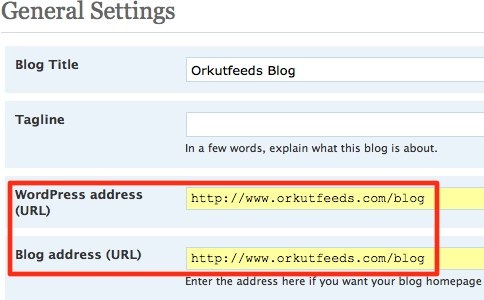
Change both URL settings carefully as one character mistake may result in disaster. Don’t worry nothing will be lost, only you will need to find a wordpress expert to fix it.
So after you are sure, press Save Changes button. You will see something like URL not found error but don’t get panic. It is expected as we haven’t moved/copied our blog files to subdomain yet. If your blog is high traffic blog then you may copy your blog files first as explained in next step.
2. Moving/Copying Blog Files
Moving files:
Now this step is trickiest one and your smartness will decide how long your blog will remain down.
If you have shell access to your webserver and its Linux/Unix based server then you can use mv command to move all blog files at once. It took less than 1 second in orkutfeeds case!
ex: $mv path_to_domain_dir/blog/* path_to_subdomain_dir/
Note that, here path_to_domain_dir and path_to_subdomain_dir should be replaced by actual paths as per your server configuration.
If your blog is high traffic blog, then you may open shell first and type such command in advance. Please DO NOT hit enter before performing step 1.
Also DO NOT attempt moving files using FTP clients.
Copying files:
This is for users who do not have shell access or have Windows server. This is good for high traffic site also.
Copy all files from one location to another location via FTP. Alternatively, you can use shell command to copy files if reason for this approach is high traffic to your site.
How you do this is your choice!
Once all your blog files are available at new location and you done with configuring wordpress as mentioned in step 1, you now either waiting on an error page, wordpress login page or settings page again.
Just refresh no matter what is next to your eyes. You should see now your wordpress blog at new location. If you don’t contact me ASAP, with as much details possible.
3. Creating/Updating .htaccess file to preserve permalinks
This part is essential to maintain permalinks and SEO juice. Again this is divided in two ways depending on your goal.
Moving from a subdirectory to a subdomain:
Under root directory of your site (this is different than root directory of your blog), create (or update if already exist) a .htaccess file. You need to add only 3 lines to it as shown in following example:
Options +FollowSymlinks
RewriteEngine on
RewriteRule ^blog/(.*) http://blog.orkutfeeds.com/$1 [R=301,NC]
Please make 2 change to last line:
- If your blogs’ subdirecotry have different name like wordpress, then replace first occurrence of blog with its name. (Ex: For wordpress, change ^blog/ to ^wordpress/)
- Replace http://blog.orkutfeeds.com/ with your subdomain URL. DO NOT forget trailing slash (/).
Also delete or rename ‘blog’ subdirectory for .htaccess file to work.
Moving from a subdomain to a subdirectory:
Under subdomains root directory, create (or update if already exist) a .htaccess file. You need to add only 3 lines to it as shown in following example:
Options +FollowSymlinks
RewriteEngine on
RewriteRule (.*) http://www.orkutfeeds.com/blog/$1 [R=301,NC]
Please make 1 change to last line:
- Replace http://www.orkutfeeds.com/blog with your new blog URL. DO NOT forget trailing slash (/).
Thats All! Now all permalinks, including links indexed by Search Engines should work fine.
Ideally, if you can perform all above steps at the same time, the whole process will go unnoticed without any downtime.
If you have any questions/suggestions please feel free to use comment form below.
If you like this post, please check our ongoing series on best WordPress Plugins.
71 Comments
Hi,
Great guide, it helped me out alot!
But I have a single issue 🙁
I am trying to move my blog from http://www.hjelmen.org/blog to blog.hjelmen.org and I copied the code into a fresh .htaccess file, and placed this in the root of my domain.
This causes all old links to cause this error:
“Redirect Loop
Firefox has detected that the server is redirecting the request for this address in a way that will never complete.
The browser has stopped trying to retrieve the requested item. The site is redirecting the request in a way that will never complete.”
Do you have any idea why this is happening, and how might I correct the issue?
@Bo
There may be some mistake in .htaccess file.
Can you just paste its content here?
Options +FollowSymlinks
RewriteEngine on
RewriteRule ^blog/(.*) http://blog.hjelmen.org/ [R=301,NC]
The old directory was, as mentioned /blog.
@Bo
There is one mistake on 3rd line.
Add $1 after http://blog.hjelmen.org/
Correct it and it will work fine.
Thank you very much. It seems that I had not only screwed up during copy/paste, but had also copied the file into a wrong directory.
That’ll teach me to cd correctly 😛
Thanks for the correction, and for a good guide 😀
@Bo
Glad to know it worked. 🙂
I’ve tried the instructions above and got a redirect loop as well but my htaccess appers to have been correct and in the root directory.
Options +FollowSymlinks
RewriteEngine on
RewriteRule ^wordpress/(.*) http://blog.wardelldesign.com/$1 [R=301,NC]
@Dell –
First sorry for late reply buddy as I was away on a long vacation… 🙁
Now just tell me if you named .htaccess file correctly. It contains dot(.) as part of it name.
If you are still facing some issue, please let us know.
…the missing dollar sign above was sanitized by the blog
Hey Rahul,
Thanks for the reply. I’ve since solved the problem which I’ve documented as my first blog post: WordPress & GoDaddy. Thanks again.
@Dell –
Glad to know that.
And nice post too.
Happy blogging… 🙂
Hi Rahul
can you let me know what I Would change in the .htaccess file if I was moving my blog from my main site to a subdomain. So from http://mysite.com to http://blog.mysite.com?
Thanks
Saif
@Saif –
Your problem is more complicated buddy.
You need third line to be like…
Options +FollowSymlinks
RewriteEngine on
RewriteBase /
RewriteCond %{REQUEST_FILENAME} !-f
RewriteCond %{REQUEST_FILENAME} !-d
RewriteRule (.*) http://blog.orkutfeeds.com/$1 [R=301,NC]
But this will conflict with ur top-domain if you host another wordpress or similar site there.
Try this and send me details if you stuck.
As I said, your case is different, I need more details to see what can be done.
Excellent article… Successes and prosperity to you!
@Cooltallaware
Thanks buddy… 🙂
I’m doing this and have a question. My host allows me to create the blog.research2zero.com domain and point it to /blog which is where my blog is already. If I just do that and update my feedburner won’t it do the trick? In that case I wouldn’t have to move any files or anything.
But that seems too easy.
I want to amend my comment with the understanding that I need to then update the htaccess to make sure that old links directly to http://www.research2zero.com/blog/ are pointed to blog.research2zero.com
Okay I need some help. Things seemed to work BUT I didn’t change the wordpress and blog URL and now I cannot access my wp-admin and so forth. Is there a file on WP that I can modify that will set it right?
Or do I have to reverse the process or reinstall WP (I have a backup of everything of course.)
@Kris
Your wordpress login URL is at http://blog.research2zero.com/wp-login.php
You can place a .htaccess file in http://www.research2zero.com/blog/
Refer above post for .htaccess content.
@M
Great if all is working without any problem! 🙂
Moving and copying both results in same end result.
Copying is too play safe. So that if something goes wrong your blog doesn’t break
AWESOME post Rahul. I was so scared of doing this (I usually wreck things, even though I’m a developer), but I was surprised that it only took me about 3 minutes to fully move it as you’ve described.
I just wanted to say that I’ve actually moved (not copied) the files via FTP, and I didn’t have any problems.
I’m trying to do something similar but I’m not having any luck. I have my website on a subdomainm subdomain.domain.com. Now it’s not a wordpress installation but this is the best thread I’ve found in the last few days.
My entire installation is also accessible through domain.com/subdomain
What I’m trying to do is come up with a rewrite rule to redirect all the existing links from subdomain.domain.com to domain.com/subdomain, but the best results I’ve had so far is that when subdomain.domain.com and subdomain.domain.com/any-page-you-type-here, all point to just domain.com/subdomain but what I really want to happen is subdomain.domain.com/any-page-you-type-here goes to domain.com/subdomain/any-page-you-type-here
When I thought I had the code in place that would work i just get an Internal Error. I’ve been editing the htaccess file in the subdomain folder, which is where the installation is for subdomain.domain.com which is the exact same installation location as domain.com/subdomain
Do I need to modify htaccess on the root as well and how can I do what I’m trying to do without writing in each individual rewrite rule for every single page on my website, that would take way too long. It seems it would have to be very easy to just swap subdomain.domain.com with domain.com/subdomain for every single page when someone tries to access it through the subdomain instead of the folder.
@Frederick
I am really sure that there must be an error in .htaccess file.
If .htaccess has correct code, you would have redirected to right link.
Please paste your .htaccess content here.
This is the base file that my CMS Installation put in the folder (drupal) I had to remove the lines I added because, like i said, the site is high trafficed and I can only take it down for seconds if it’s not functioning right I rewrite with a fucntioning file.
I’m not sure if I have the code I was putting in to recreate the Internal Errors but I’ll try to recreate it.
RewriteEngine on
RewriteBase /
RewriteCond %{REQUEST_FILENAME} !-f
RewriteCond %{REQUEST_FILENAME} !-d
RewriteRule ^(.*)$ index.php?q=$1 [L,QSA]
RewriteRule (.*)\.xml(.*) $1.php$2 [nocase]
DirectoryIndex index.php
ErrorDocument 404 /processor.php
Here is what I was modifying too in a ton of variations
RewriteEngine on
RewriteBase /
RewriteCond %(HTTP_HOST) ^subdomain.domain.com$
RewriteRule (.*) http://www.domain.com/subdomain/$1
RewriteCond %{REQUEST_FILENAME} !-f
RewriteCond %{REQUEST_FILENAME} !-d
RewriteRule ^(.*)$ index.php?q=$1 [L,QSA]
RewriteRule (.*)\.xml(.*) $1.php$2 [nocase]
DirectoryIndex index.php
ErrorDocument 404 /processor.php
I wish I had the exact code, but I added two lines, I think the code I have in now was redirecting subdomain.domamin.com/any-page to domain.com/subdomain but not to the specific page it was for so all my pages were just going to the domain.com/subdomain which I can’t have happen, I need all the links to be seemlessly migrated to the new URL.
You probably already know what it should say though or what the correct code is without me figuring out what I had in there that I thought should solve the problem but instead was recreating internal errors.
@Frederick
Do not modify any file created by Drupal including .htaccess
Move (better copy) them (every file, folder, images, .htaccess, etc) as it is to domain.com/subdomain directory.
Then make sure if Drupal is working fine at new address i.e. domain.com/subdomain
You may need to edit database or some file which tells drupal site url. You can search for value subdomain.domain.com and replace it with domain.com/subdomain
You may need to use PhpMyAdmin if Drupal stores site url information in database (most CMS stores such info in database only).
If it is storing in file you need to do search and replace in that file.
Check Drupal docs for help at this point.
Now as a test make sure correct page is served at new location.
As an example, content at “subdomain.domamin.com/any-page” and “domamin.com/subdomain/any-page” should be same.
Once above test works correctly, then only do following change.
In root folder for subdomain.domain.com there must be a .htaccess file (from which you have copied above code).
Rename it to .htaccess.bak
This will create backup of .htaccess file.
Then create a new .htaccess file with code of format…
Options +FollowSymlinksRewriteEngine on
RewriteRule (.*) http://www.domain.com/subdomain/$1 [R=301,NC]
Thanks for the advice above, the htaccess file I copied from and pasted in here is in the root directory of the subdomain folder which is just one layer down from the domain.com root.
But you can also access the drupal installation by going to root/folder so if I go to URL http://www.domain.com/subdomain I can access the drupal installation, but only the main page, none of the the links work via the folder.
So as far as moving it, I wouldn’t know how to do it, the drupal installation is in the location I need it to be already domain.com/subdomain which is the exact same location as subdomain.domain.com.
I’m not sure if I’m explaining it correctly but the directory the subdomain points to is the exact same folder I want it to redirect to and it’s already accessible there because it’s the same location, ie, I have a folder called subdomain one level down from root which is accessible from subdomain.domain.com and domain.com/subdomain. Maybe this is why I’m having problems with the rewrite? It’s the same htaccess file for both locations.
So if I were to change the htaccess file for drupal that is in the root directory that the subdomain is using, it wouldn’t be good because it’s the same file.
What I’m trying to accomplish is to just have my site be accessible through the subdomain folder off the root domain.com instead of the subdomain.
So I think I’m starting to understand where the problem is. Should I make a new folder under the root, copy drupal installation to it, update the SQL Database URL references, change base url in the settings.php for the drupal install, and then once that is working I would modify the htaccess file in the old folder to rewrite to the new location?
Or is there a way to specify in the htaccess file or somewhere else that when the website is accessed from google or other links via subdomain.domain.com that it just reroutes it to domain.com/subdomain so that it doesn’t try to do anything funky when people do actually get to domain.com/subdomain? Like if I could just use a specific hard coded URL that i want it to redirect that wouldn’t affect anything else, since it’s the same htaccess file in both locations already.
Thanks a lot you’re helping me understand the dilemma a little better.
Or am I way off on this one.
@Fredrick
Sorry for delayed response buddy.
There is a complex solution available for your problem. Also it depends on your hosting company.
Basically you can modify where your subdomain will point. So by changing directory name which is getting mapped to subdomain you will free up your URL http://www.domain.com/sunbdomian.
Do one thing, if you are still having problem with this contact me via email at [email protected]
There is no generic How-To solution for your problem. We need to first check which webhost you are using, which cpanel they are providing, also if you are allowed to access your server and mainly if you are permitted to manage apache’s vhost configuration.
This may sound too much work, and it is too much work for real. But things can be made to work for sure. 😉
Hi Rahul,
Here I need one help related with this.
Recently I removed global translator plugin (mostly it is temporary). As you might know, GT creates translated pages based on folders like italian version of my site would be accessed at http://www.techpavan.com/it/ The problem now is I have removed my translated pages and they all are resulting in 404s, but I would like to redirect all them to related page on my English main website.
If someone is driven to techpavan.com/it/somepage/ I want him to be redirected to techpavan.com/somepage/ and I want that to be a 302 redirect as I may make use of the plugin again.
I tried to make use of the method you said above, but somehow failed to succeed, and in my case all should be written in the same htaccess file. Could you please help me with codes.
Thanks
@Pavan
I guess your issue has been fixed as we talked in scrap!
Let me know if you want .htaccess for your problem. 😉
Rahul,
The problem was solved automatically by the Platinum SEO plugin, but sharing the solution here would help someone who fit into my shoes.
And what I needed was a 302 redirect, but this plugin gave 301s 🙁
@Pavan
You may create something like below in your .htaccess.
Following is for language ‘it’ i.e. italian.
Add codes for other languages on similar lines.
RewriteRule ^(it/)(.*) http://www.devilsworkshop.org/$2 [L]Also above are 302 redirects! So you consider using them instead Platinum SEO plugin.
Thanks dude… that’s of help 🙂
Hi,
I tried that and just at the first step I got the error message as you told. I had not read “don’t worry” part and sureshot got panic and went and changed what to what I originally had (http://www.sathyamurthy.com/forwards) now I am not getting anywhere. I know the installation is there but not getting it back properly.
Please help.
@Rahul
Just checked your blog.
Everything is seem to be working fine.
Did I miss something?
@Rahul
Sorry for late reply.
Can you provide more details?
I see http://www.sathyamurthy.com/forwards as working fine
I am trying to move from subdomain.domain.com structure to domain.com/subdirectory.
But I am not sure if the page rank of subdomain.domain.com will be transferred to domain.com/subdirectory
And could you also list the pros and cons of both?
@Techie
Page rank will move if you keep htaccess at subdomain.domain.com as mentioned in the post.
If you put something else at subdomain.domain.com, then page rank may break!
Rahul,
I am trying to move from blog.domain.com to domain.com. Using the following in htaccess:
RewriteEngine On
RewriteCond %{HTTP_HOST} ^blog.domain.com$
RewriteRule ^/?(.*)$ “http\:\/\/domain\.com\/$1” [R=301,L]
with this whenever I try to click on a permalink from blog.domain.com That is from google search it is going to domain.com and not to the exact location of the post.
Will be glad if you through some lght..
@Techie
I guess following code should work well enough for you.
Put them in .htaccess file at blog.domain.com. I am assuming that you already moved all content and followed other steps in above post.
Options +FollowSymlinksRewriteEngine on
RewriteRule (.*) http://domain.com/$1 [R=301,NC]
I have wordpress installation at http://digilib.stikom.edu/humas/ittv. All posting and comment running well at this URL. When I want to change this subdirectory to sub domain, why all my permalink get error? few of my image also missing.
I already change the WordPress Address and Blog Address at Setting > General. Is there any problem with my htaccess ?
# BEGIN WordPress
RewriteEngine On
RewriteBase /
RewriteCond %{REQUEST_FILENAME} !-f
RewriteCond %{REQUEST_FILENAME} !-d
RewriteRule . /index.php [L]
# END WordPress
I am guessing my issue is similar but nothing seems to be working.
I installed WordPress at http://www.mydomain.com/blog and everything worked fine with “pretty permalinks”. I then decided to have the blog at blog.mydomain.com so I created the subdomain and pointed it to the http://www.mydomain.com/blog directory. I updated the paths in the general settings and the blog loads fine but the permalinks no longer work. It only works if I use the wordpress default permalink settings.
Any idea how I would fix this?
@James
Try this:
First, whatever steps you performed earlier were right. So if you have rolled back them, do it agian.
Now login to Dashboard. Go to “Settings” menu.
You will see “WordPress address (URL)” and “Blog address (URL)”. They will have value like “http://www.mydomain.com/blog”. Change it to “http://blog.mydomain.com/”
Save Changes. You may get “error” message when you will save changes. Don’t worry. Just go to “http://www.mydomain.com/blog” and check if everything is working fine.
You may need to update .htaccess file in root directory of “http://www.mydomain.com/” to redirect traffic coming to your blogs from old permalinks.
Use above .htaccess codes for guidance.
Can I use this .htaccess method if I want to move my blog from the /blog folder to the root directory? Or would the .htaccess rules be slightly different? Basically I want to move wordpress to the root directory of the site without breaking any permalinks.
Thanks for any help!
@Seth
Following code should work for you…
Options +FollowSymlinks

RewriteEngine on

RewriteRule ^blog/(.*) http://www.orkutfeeds.com/$1 [R=301,NC]
Replace http://www.orkutfeeds.com/ with your sites root URL. Be careful with slashes (/).
Thanks, Rahul! I’ll give it a try.
I just want to confirm something before I try your suggestion, to make sure I understand the process. Once I set up the .htaccess in the root directory as you indicated, and have moved all the wordpress files in /blog to just / and updated the wordpress address and blog address from within wordpress (BEFORE moving files, I know), any links that refer to /blog are automatically redirected to just / before the page even loads in the browser, right? So it doesn’t matter that the /blog directory is deleted, ya? Thanks!
…okay this is the code I’m using in the .htaccess file to redirect things from /blog to /:
Options +FollowSymLinks
RewriteEngine on
RewriteRule ^blog/(.*)$ http://www.semiosiscommunications.com/$1 [R=301,L]
I don’t know what the difference between “NC” and “L” is, but all the examples I could find elsewhere seemed to use the latter.
Also it seems the $ after ^blog/(.*) is important, signaling the end of the string… was that just accidentally left out of the above example?
In any case, it didn’t work at first and I don’t know why. I called my server (1and1) and was on with them for over an hour… they couldn’t figure it out either. But then after a few hours I came back and it seemed to be working fine, so I don’t know if they did something on their end or what. I don’t care as long as it keeps working!
Just wanted to say thank you very much for this post. Had been trying to move my blog from a subdomain back to the main domain and this explained pretty much everything. As I’m using permalinks, the only additional step I had to take was to update the .htaccess file as per point 10 here: http://codex.wordpress.org/Moving_WordPress
Thanks again.
Damian
Thanks for this great post and all your responses in the comments. Unfortunately, nothing seems to work for me. The story is this: I had two blogs on blogger, each of which used a subdomain structure with my custom domain name, trivialrumanations.jasonstaples.com and blog.jasonstaples.com.
I can get each of the subdomains to redirect to my new wordpress blog, but I cannot get the individual posts to redirect. For example, http://blog.jasonstaples.com/2009/10/nt-blog.html will not redirect to the answerable wordpress post. I have used the following code in the .htaccess file in my blog.jasonstaples.com subdomain on the new DNS location:
Options +FollowSymlinks
RewriteEngine on
RewriteRule (.*) http://www.jasonstaples.com/blog/$1 [R=301,NC]
RewriteRule http://blog.jasonstaples.com/2009/10/nt-blog.html$ http://www.jasonstaples.com/blog/pauls-conversion-or-pauls-call$1 [R=301,NC]
No matter what I try (with or without the $, etc.), it doesn’t work. The only thing I can get to redirect is the domain itself, but none of the posts. What am I doing wrong?
I’ve wanted to move wordpress from the subdirectory domain.com/blog to a subdomain – blog.domain.com
I created subdomain – blog.domain.com which points at domain.com/wp first.
Then changed my wordpress and blog address URLS to blog.domain.com
I moved all my wordpress files over to domain.com/wp
Then added the .htaccess file to my root –
Options +FollowSymlinks
RewriteEngine on
RewriteRule ^blog/(.*) http://blog.domain.com/$1 [R=301,NC]
At this point, when I go on domain.com/blog it forwards me to blog.domain.com however if I delete the /blog subdirectory like told to in your instructions, when I type in domain.com/blog it comes up with a 404 error page.
What shall I do? Leave the blog subdirectory there? I’m sorry if this seems pointless as it does work in a way, I’m just worried as it wasn’t exactly to what you said.
Hi!
For SEO reasons, I’ve decided to move my 3 year subdomain blog (blog.domain.com) to subdirectory (domain.com/blog). The subdomain blog is now PR5 and receives good traffic. we have an big list of URLs in the index of major search engines. My question is, would it be good decision? Can you tell how big the impact would be with regards to our previous SEO efforts? Thanks!
Rahul,
I have a question that parallels Liza’s. In that I want to move my existing blog at http://www.domain.com to either blog.domain.com or http://www.domain.com/blog. Whichever will provide the best SEO going forward and not lose any existing SEO generated.
In addition, I will be replacing the main domain with an e commerce site. What is the best way to achieve this with the best solution for SEO?
Thanks in advance!
Hi,
I tried moving my wordpress to a subdomain, I changed the URLs and moved the files like explained adove. The page works at the new location, except I can’t log in through the wordpress admin screen, when i try to and hit enter, it directs me to a page not found screen. Any ideas what I may have done wrong? Thanks so much!
Hi Rahul,
Great Tutorial. I have moved my blog to a subdomain. I changed URLS and files as you instructed. The blog works fine. See my Website address above, but on my main domain now my error 404 document does not come up. I am getting Error 500 like this:
~~Internal Server Error
The server encountered an internal error or misconfiguration and was unable to complete your request.
Please contact the server administrator, [email protected] and inform them of the time the error occurred, and anything you might have done that may have caused the error.
More information about this error may be available in the server error log.
Additionally, a 500 Internal Server Error error was encountered while trying to use an ErrorDocument to handle the request.~~
I think this is my .htaccess file. Here is what it looks like:
ErrorDocument 404 /vb_404.html
Options +FollowSymlinks
RewriteEngine On
RewriteBase /petblog/
RewriteRule ^index\.php$ – [L]
RewriteCond %{REQUEST_FILENAME} !-f
RewriteCond %{REQUEST_FILENAME} !-d
RewriteRule . /petblog/index.php [L]
RewriteRule ^petblog/(.*) http://cherishmypets.vivbounty.com/$1 [R=301,NC]
My blog used to be at http://vivbounty.com/petblog
I would appreciate any corrections to my .htaccess you might be able to provide to make my error404 doc work on my main domain.
Thanks in advance,
VivBounty
how to transfer from a sub domain to a sub domain dude ???? please help me …
thank you ..
Hi there.
Thanks a lot for your tutorial. But i’d like to add a couple of things, because i had some issues moving from /blog to blog.weasfrikis.cl
First of, as soon as you can log in to the admin panel, make sure to go to the Plugins Tab and disable them all. This because a lot of the config files keep records on plain text in the options table of the plugins, pointing to the old address.
Then you can go and set them up one by one to confirm they have the new url correctly saved and without issues on your blog.
The other thing that is important is to enter the “Permalink” tab. Even though it might have written the correct URL for the links, press the SAVE button to “refresh” the database.
This would avoid the “404 not Found” post/article/page issue.
Also if you are getting “500 Internal Server Error”, you might have to edit the WordPress .htaccess file and comment the info using # at the beginning of the file because it makes a horrific loop inside the server.
I hope this answers everybody’s problems as I had to figure them out.
Thanks a lot again!!
Greets From Chile!
Thanks for the post on how to move my blog from root to a sub domain, you saved my life. My blog was getting hard to manage within wordpress when I wanted to add links, and I was tired of trying to add these links within the themes. Thanks again.
hello,
I had installed wordpress on root. say for example : http://www.mydomain.com
I was posting there since last 2 years.
Now I have shifted that blog to : subdomain.mydomain.com/folder/
and then installed a fresh wordpress on root at : http://www.mydomain.com
So my old article links is broken.
Can you please guide me, how I can reduce effect of SEO. Where I should put .htaccess file and what I should write in that ?
please help.
I moved my site from a subdomain to the root and it all works fine except the Home page won’t show up! It goes to my Coming Soon page rather than the actual content that should be there. What could be the problem?!
The site is here.
Thanks!
If you want to change the all URL from you database so may be this helpful to you.
UPDATE wp_options SET option_value = replace(option_value, ‘http://dev.your_domain_name.com’, ‘http://www.your_domain_name.com’) WHERE option_name = ‘home’ OR option_name = ‘siteurl’;
UPDATE wp_posts SET guid = replace(guid, ‘http://dev.your_domain_name.com’,’http://www.your_domain_name.com’);
UPDATE wp_posts SET post_content = replace(post_content, ‘http://dev.your_domain_name.com’, ‘http://www.your_domain_name.com’);
Hi Rahul,
I am migrating my brother’s current blog from http://bewakoof.com/blog to http://mag.bewakoof.com/
As the subdirectory name is blog and the subdomain is mag, does this process still hold good? I have done all the processes listed above and in .htaccess I am using:
Options +FollowSymlinks
RewriteEngine on
RewriteRule ^blog/(.*) http://www.mag.bewakoof.com/$1 [R=301,NC]
Is this fine? I am unable to see any of the 2 – neither /blog or mag.bewakoof.com
Can you please help? My bro’s blog is down and I am going to get killed 🙂
Regards,
Aman
Any updates on this brother?
Awesome!
FYI I also had to add this line to the .htaccess file:
redirect /olddirectory http://articles.inneralchemycenter.com/
because inneralchemycenter.com/olddirectory would not redirect with your .htaccess mod
inneralchemycenter.com/olddirectory/ and all other links redirected but not inneralchemycenter.com/olddirectory (w/o trailing slash)
All the other permalinks redirected like a charm, and with the extra line inneralchemycenter.com/olddirectory (w/o trailing slash) also redirected.
Another thing, at first I couldn’t get it to work because I was not moving files from olddirectory. I didn’t have the need to put them in a new directory, however, the .htaccess file would not start redirecting until I did move the olddirectory to a new one. That is, at first I just pointed the subdomain to my old directory, trying to save a step, but then I changed old directory name to a new name, and repointed my subdomain. Now it works perfect!
Thanks again for the great and simple instructions!
Tom
Hi Rahul,
its been 4 years you are responding to your initial post: thanks again ! i have a question related to this 😉
my WP site is http://www.2emesouffle.com the WP files are located under a subdirectory /prod/web
i want to setup another WP site with a subdomain http://www.testweb.2emesouffle.com for test purpose under a subdir /test/web
So its about 2 WP (no multisite at all) with their own database. One under the root domain and under a subdirectory and the second under a subdomain and a subdirectory
What .htaccess should i create under my root directory and under my /prod/web directory and under my /test/web directory ?
Thanks
Your case is totally different than article posted above.
You need to change paths in Apache virtual host config files.
Sample config will look like below:
For
www.2emesouffle.comand for
www.testweb.2emesouffle.comDepending on your setup, you may find above files in /etc/apache2 dir.
If you do not have shell access to your server, and manage things via cPanel only, its better to contact cPanel forum. I not sure if they allow manual edits to Apache config.
Thanks for this answer.
My problem is that i do not have access to Apache config. So im afraid i have to make some tricks with the root .htaccess…
but i run into many problems because of my lack of mastering this file 😉
I guess you wont be able to achieve this using
.htaccesschanges.May be cPanel has an option to select folder location when creating site. Check with it.
Eventually i succeed: i don’t need any trick with my hosting:
* the subdomain is pointing “natively” on my /www/test/web dir, so no need to set anything on the .htaccee root directory in /www
* the main domain is pointing “natively” on my /www/ root directory. So, im in the case described in the wordpress codex http://codex.wordpress.org/Giving_WordPress_Its_Own_Directory
thanks for your response !
i want to update wordpress site as “http://blogname.domain.com/”
which is currently “http://domain.com/blogname/”
the “blogname” will change for each blog, it will not remain to “blog”
can you help?
Hi
I did what you said.
but when someone requests ‘www.abc.com/blog’
it gets redirected to ‘blog.abc.com/blog’