Note: This guide is written for beginners and only thing you are expected to know is how to install firefox extension.
# Introduction
Greasemonkey is a Firefox extension for altering the web pages you visit. Greasemonkey performs these alterations using specially written javascript files called userscripts.
As a user, you need not worry about writing userscripts. There are plenty of places on internet where you can find millions of userscripts which alters the website you want, in a way you like! A list of such websites is provided at the end of this guide.
Now as a beginner you need to know few basics things first like…
- Installing GreaseMonkey Extension
- Installing GreaseMonkey Userscripts
- Managing GreaseMonkey Userscripts (e.g. Uninstalling)
# Installing GreaseMonkey Extension
Requirement: Greasemonkey is firefox extension, so it can run on every platform on which firefox runs (that includes Windows, Linux, Mac, etc). So all you need is firefox. There are Greasemonkey alternative for Internet Explorer and Opera but they performs very poorly and thus not recommended.

Now if you are in firefox then click here to install Greasemonkey extension! (You can also visit GreaseMonkey Addon Page)
Like other firefox extensions clicking on above should prompt a install now dialog as shown below…

Click on Install Now link. You need to restart you browser for installation to complete!
>> On successful installation (after restart), you should see Greasemonkey icon in lower-right corner of firefox browser
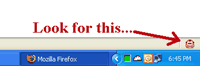
You must see Greasemonkey icon as shown above before proceeding!
# Installing GreaseMonkey Userscripts
Next comes important part of installing userscripts. Without userscripts Greasemonkey can’t do anything!
There are many place on internet where you can find userscripts. Normally a link to userscript ends with user.js extension.
Clicking on any such link will open a dialog like below. Just click Install button. Thats it!

You can also read this document describing this part in more detail as well as watch a slightly old video tutorial.
# Managing GreaseMonkey Userscripts (e.g. Uninstalling)
In three ways you can mange a userscript from Greasemonkey management console: disable, uninstall & reconfigure.
To bring Greasemonkey management console,
- either right click on Greasemonkey icon in lower-right corner and select Manage User Scripts option from context menu.
- or Go to firefox main menu and select Tools >> Greasemonkey >> Manage User Scripts option.
It will look like below…
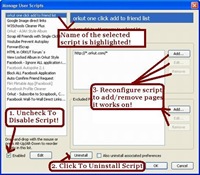
Now carefully look at above screenshot. From one place you can control everything related to userscripts on your system…
The left sidebar shows list of all scripts installed. Note some names are faint. That indicated a disabled script.
To perform certain operation on a userscript first select that userscript from left sidebar. Once selected its name get highlighted as shown in above screenshot.
You can perform following operations on a userscript…
- Disable – Disabling a userscript will make it inactive. It will remain on your PC but will not alter pages anymore. (Video Tutorial)
- Uninstall – It will remove userscript completely from system. (Video Tutorial)
- Reconfigure – It includes editing list of pages which a userscript supposed to alter. You will rarely need to use to this option. (Video Tutorial)
This covers most of the things from user perspective!
# Finally Some Greasemonkey Repositories…
- Userscripts.org
- Old Greasemonkey script repository
- List of userscripts developed by me
Credits: Part of this article and all video tutorials are by Dive Into Greasemonkey!
14 Comments
How do you change the text editor? Wordpad doesn’t work.
@Richard
You can set any editor as default greasemonkey script editor.
Here are the steps…
1. Type about:config in address bar. Hit Enter. If it shows any “warranty” warning just go ahead.
2. Next type greasemonkey in filter field.
3. Right click on preference name: greasemonkey.editor value from list and select Modify option.
4. Put exact path to text-editor in field that pops-up. Ex: C:\Windows\notepad.exe on windows for notepad
dear i did the whole process for greasemonkey but i was unable to use either of the script installed …………….
what’s the problem dude !!!!!!!!!!!!!!1
@amit –
Please check if you have accidentally disabled greasemonkey
User script command is greyed out when i click on tools > greasemonkey >
What can I do to fix it
@Lisa
User scripts command will be activated automatically when you are on a page which have active Greasemonkey script which in-turn defines some commands.
Hardly few scripts uses this so do not worry about it.
I had to reload my OS and now I am trying to reload my GM scripts that are on my disk. I tried to drag them into the ‘Manage User Scripts’ window, but they do actually move. How do you reload scripts that you already have on your disk (example: C:\Program Files\Mozilla Firefox\gm_scripts\suddenlink_focus\suddenlink_focus.user.js)?
Thanks
@John
Firefox keeps Greasemonkey scripts at following path:
C:\Documents and Settings\user\Application Data\Mozilla\Firefox\Profiles\gm_scripts
U can also try on pasting “%APPDATA%\Mozilla\Firefox\Profiles\gm_scripts” directly on Windows Explorers address bar.
@Dipesh
Your is complex problem. Try these solutions posted over Internet.
If you find them to hard too follow, simple uninstall all firefox addon and then reinstall one-by-one.
When I install greasemonkey, it doesn’t work. I restart Firefox and when I click on the options for Greasemonkey the add-ons window freezes. If I close the add-ons window before trying to open the options, I can’t install any scripts. When I open the error console it comes up with:
No chrome package registered for chrome://…
What can I do?
Great one for the newbies.
I am running greasermonkey and one guy has it locked up to go to him each time, how do I fix?
@Ed Loughrey
Sorry, but I did not get you!
hey bro,
i m changing my orkut theme, but how to visible for all orkut user/friends?
plz tell me thnkx
how do i make it so that i can just have facebook open but not have to refresh the page for it to poke? i want it to autopoke even when i am asleep and stuff..right now i modified the code a little so that it pokes only whenever i go to facebook homepage.